
You cannot know for certain. That is the honest starting point, and any page that promises otherwise is either selling a scanner or has not thought about it. What you can do is shrink the gamble from “thirty unknowns” to “two things I checked and twenty-eight I decided not to worry about”, which takes about half an hour and catches the great majority of real failures.
The method below is a triage, not an audit. Auditing thirty plugins is a job nobody finishes. Sorting thirty plugins into three tiers and properly researching the top tier is a job that gets done.
Version and verification. Written against WordPress 7.0.2, released 2026-07-17, current stable. WordPress 7.0 shipped 2026-05-20 and 7.1 is scheduled for 2026-08-19. Last verified 2026-07-30 against wordpress.org.
Start with the list, not the research
Get your whole plugin inventory in one readable place before you look anything up.
Go to Tools > Site Health, then the Info tab. Expand Active Plugins and Inactive Plugins. You get every plugin with its version number, its author, and whether auto-updates are on. There is also a copy-to-clipboard button that exports the entire Site Health report, which is the fastest way to get the list somewhere you can annotate it.
Two things to notice while you are there.
Your inactive plugins are on this list too, and if there are more than a couple, that is a finding on its own. A deactivated plugin still sits on your server and still has to be maintained. If you are not using it, the pre-update decision for it is deletion, not research.
The Status tab may have already done some of your work. It flags plugins waiting to be updated, and it raises a critical issue if your PHP version is outdated. Both are inputs to what follows.
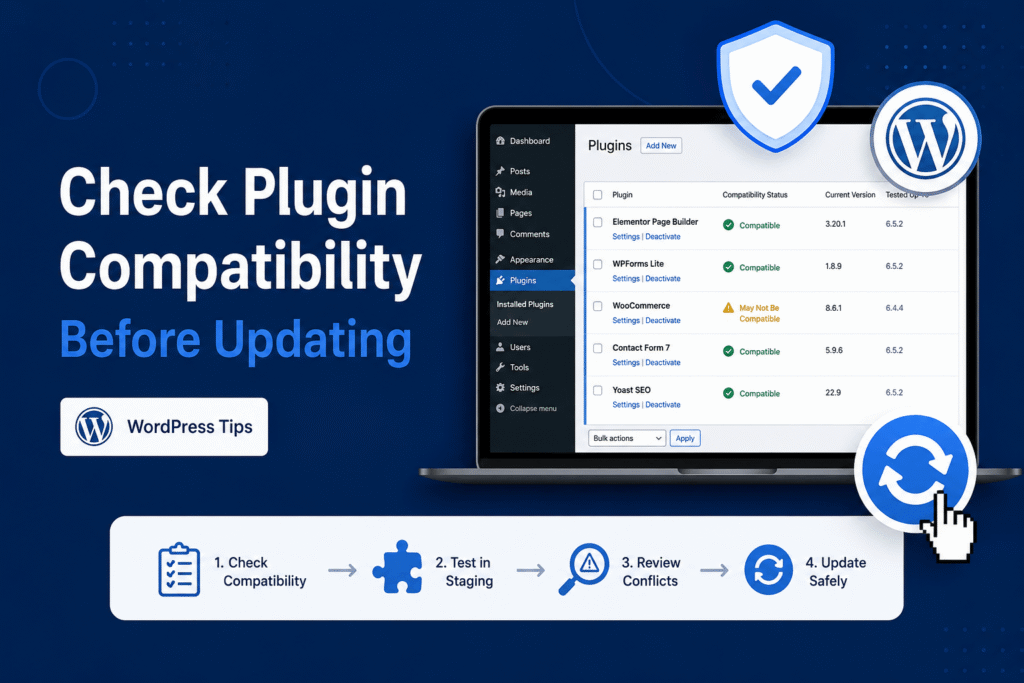
Sort your plugins into three tiers, because you will not research thirty of them
Do this before you look up a single changelog. The sorting question is not “how likely is this to break”, it is “how much would it cost me if it did”.
Tier 1: it costs money, content, or access. Your shop, your payment gateway, your membership or paywall plugin, your booking or scheduling system, your forms if forms are how leads arrive, your backup plugin, your security or login plugin. Typically two to five plugins. These get the full research pass.
Tier 2: it would be visibly wrong but not damaging. Your page builder, your gallery or slider, your table plugin, anything that renders part of a page. If it fails, a page looks broken and you fix it. Typically five to ten plugins. These get a two-minute look: last-updated date and most recent changelog entry.
Tier 3: everything else. Small utilities, single-purpose helpers, anything you would not notice for a week. These get nothing before the update and a glance afterwards.
The tiering is the part that makes this method work, and it is the part most guides skip because it requires a judgment about your own site that a generic article cannot make for you.
Tier 1: the plugins that would cost you money or content
For each Tier 1 plugin, in this order:
1. Open its page in the WordPress.org directory (or the vendor’s own changelog page for a commercial plugin) and read the last-updated date. This is measured rather than declared and it is the most reliable single field on the page. A plugin updated in the last few weeks has an active maintainer, which matters more than any compatibility claim.
2. Read the changelog for the release you are moving to. You are looking for the version number by name. An entry that says “WordPress 7.1 compatibility” or names a specific fix is evidence of actual work. A changelog with nothing since before the release means either nothing was needed or nobody looked, and the changelog cannot tell you which.
3. Open the support forum tab and read the most recent threads. This is the closest thing to field testing you will get for free. If a plugin broke on a WordPress release, it was reported here, usually within days. Filter mentally for reports that name the version you care about.
4. Check the “Requires PHP” value against your own PHP version. Unlike “Tested up to”, this one is enforced: WordPress will block activation if you do not meet it. With WordPress 7.0 having raised its own floor to PHP 7.4 and ended support for 7.2 and 7.3, PHP versions have been moving on a lot of sites, and a plugin requiring a newer PHP than you run will simply refuse.
5. Note what “Tested up to” says, and weight it correctly. It is typed by the developer and verified by nobody, so treat it as a rough timestamp of when they last thought about WordPress versions rather than as a test result. What that field actually means covers why it is weaker evidence than it looks and stronger evidence than nothing.
Five steps, three or four plugins, roughly twenty minutes. That is the pass.
The four signals worth reading, in the order they are worth reading
Condensed, because the order is the useful part:
- Last-updated date. Measured. Tells you whether anyone is home.
- Changelog mentioning your target version by name. Evidence of work.
- Recent support threads. Evidence from other people’s sites.
- “Tested up to”. A declaration. Useful as a sorting key, not as a verdict.
If the first three agree, the fourth adds nothing. If the first three are silent, the fourth is all you have and it is not much.
The three plugin categories most likely to break on a major release
Compatibility risk is not evenly distributed. It clusters, and on the 7.x generation of WordPress it clusters in three places.
1. Anything that modifies the admin interface. This is the big one on this release, and it is specific to it. WordPress 7.0 replaced the Posts, Pages and Media list tables with the new data views, moved the command palette from the block editor out to the whole admin, gave font management its own page, and rebuilt the admin color scheme. Plugins that added columns to a posts list, added filters to the media library, restyled the dashboard, or simplified the admin for clients were all hooking into screens that changed underneath them.
2. Anything that extends the editor. Page builders, block libraries, custom block collections. These are large codebases with deep integration, and they are the category where waiting for the vendor to publish a compatibility note is genuinely the right call rather than caution theater.
3. Anything that has not been updated since before the PHP floor moved. A plugin written against PHP 7.2, on a host that has since moved you to PHP 8.x, can fail for reasons that have nothing to do with WordPress at all. This is why a site that breaks the day after a host’s PHP change looks identical to a site that broke from a WordPress update, and why you should never change both on the same day.
Notice that “how old is it” appears in two of those three. Age is the strongest single predictor available to you, and it is free to check.
Where the paper trail runs out
Here is the limit, stated plainly because the alternative is a false sense of completion.
Desk research cannot prove compatibility on your particular stack. It cannot account for the interaction between two of your plugins, which is where a real proportion of breakage actually lives. It cannot account for your PHP version, your object cache, your theme’s own customizations, or a setting you changed in 2023 and forgot. A plugin can be genuinely tested, genuinely current, genuinely fine for ten thousand other sites, and still fail on yours because of something no changelog would ever mention.
What research does is remove the known risks, which is most of them. What it cannot remove is the interaction risk, and there is exactly one way to see that in advance: run the update on a copy of the site and look. How to test an update on a copy of your site covers making that copy, and it is the step that converts this method from “probably fine” into “I watched it work”.
For a site that earns money, do both. For a personal blog, the research alone is a reasonable place to stop.
Turning research into a decision: update, wait, or replace
Three outcomes, and it is worth naming them because “I researched it” is not a decision.
Update. Every Tier 1 plugin is currently maintained and either names your target version in its changelog or has a clean recent support forum. Go, following the pre-update checklist, at a low-traffic hour, with a backup you have confirmed you can restore.
Wait. One Tier 1 plugin is maintained but has not addressed the release yet. Waiting a week or two costs you nothing on a major release. Point releases exist because early adopters find things, and the vendors of large plugins usually ship their compatibility release within days of a WordPress major.
Replace, or accept the risk knowingly. A Tier 1 plugin has not been updated in a long time and nobody is going to fix it. That is a real decision with a real cost and it is not an update decision anymore. Deferring the WordPress update indefinitely to protect an abandoned plugin trades a known security exposure for an unknown one, which is rarely the trade people think they are making.
The thing not to do is the fourth option, which is to research, find something worrying, and update anyway because you have already spent the time.
What to do with the plugins you decided to wait on
If you are waiting on one plugin and want the rest of the update, you have a middle path: update WordPress core and hold that plugin at its current version by turning off its auto-update on the Plugins screen, in the Automatic Updates column. WordPress runs auto-updates twice a day by default, so leaving that toggle on will quietly install the version you were avoiding.
If you would rather hold everything, that is defensible for a short window and not for a long one. WordPress.org’s release archive is explicit that only the most recent release in a series is actively maintained, which means sitting on an older 7.0.x build means sitting without security fixes.
And if you update anyway and something breaks, the two paths are fixing the plugin in place, which is usually possible, and rolling it back, which is the fallback and comes with its own conditions.
Running this before 2026-08-19
WordPress 7.1 is scheduled for 2026-08-19. The announced changes are additive on their face, which historically means lower risk, but the admin-facing plugin category is still the one carrying the risk from 7.0’s rebuild and 7.1 continues to develop those same screens.
The version of this method that fits in an afternoon: pull the plugin list from Site Health, tier it, run the five steps on your two or three Tier 1 plugins, delete anything inactive you are not going to use, and note your PHP version while you are in there. If any of it comes back uncertain, the copy-of-your-site route is the answer, and the site owner’s guide to WordPress 7 has the broader context on what these releases changed and why.
