
If a plugin stopped working right after you updated to WordPress 7.0, the fastest path back is: confirm the update is the actual cause, deactivate and reactivate the plugin to clear a stuck state, then check three known 7.0-specific culprits (the new PHP minimum, a conflict with the redesigned admin, and an out-of-date “Tested up to” flag). If none of those fixes it, rolling the plugin back to the version you had before, or rolling WordPress itself back to 6.8, is safe when done in the right order and with a current backup in hand. Below is the full decision path, not just “clear your cache.”
WordPress 7.0 (“Armstrong”) shipped on 2026-05-20 with the largest admin redesign since 2013, and version 7.0.1 followed on 2026-07-09. This guide is written against that version. WordPress 7.1 is scheduled for 2026-08-19 and will not change anything below; a separate guide covers what 7.1 changes.
First, two minutes of triage: what exactly broke?
Before touching anything, narrow the failure to one of three shapes, because each has a different fix:
- The wp-admin dashboard itself won’t load or throws an error. That is a critical error, not a plugin feature failing, and it needs a different guide (linked at the end).
- The front end of your site is broken: a page is blank, a shortcode shows raw text, a page builder section is missing.
- One specific plugin feature stopped working, but the rest of the admin and the front end load normally. This is the most common shape after a WordPress update, and it is what the rest of this guide fixes.
If you are in the first category, stop here and go to our critical error recovery mode walkthrough. For the second and third, keep reading.
The 10-minute fix path
- Deactivate and reactivate the plugin. WordPress core changes sometimes leave a plugin’s stored settings in a stale state. A clean deactivate/reactivate cycle resolves this more often than it should, and it costs nothing.
- Clear every cache layer, not just one. A page cache plugin, your host’s server-side cache, and your browser cache can each independently show you an old, broken version of a page after an update. Clear all three before concluding the plugin itself is broken.
- Isolate with a conflict test. Deactivate all other plugins except the one that broke, and switch to a default theme temporarily. If the feature works now, reactivate your other plugins one at a time until it breaks again. That plugin, not WordPress 7.0, is the real conflict.
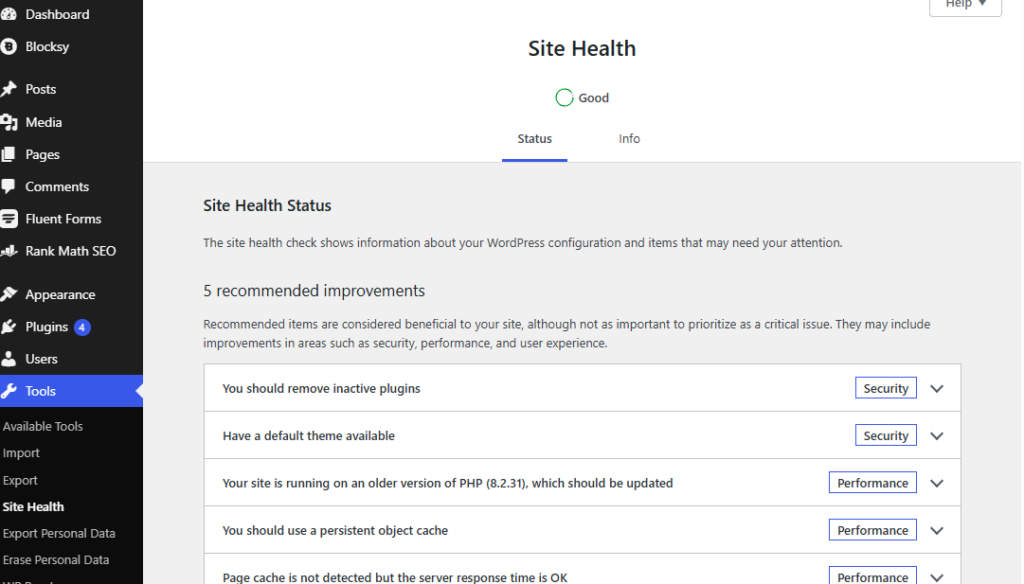
- Check Site Health. Under Tools → Site Health, WordPress surfaces some plugin and PHP compatibility warnings directly. It will not catch everything, but it takes thirty seconds to check.
- If the admin itself is sluggish or half-rendering, that is more often a conflict with the new DataViews-based screens than the plugin’s core function. Our walkthrough of the redesigned admin covers what changed and why some admin-customization plugins clash with it.
The three 7.0-specific culprits
1. The new PHP minimum. WordPress 7.0 raised the minimum supported PHP version to 7.4 and dropped support for PHP 7.2 and 7.3 outright, while the recommended version for a modern setup remains 8.3 or higher. If your host is still running 7.2 or 7.3, a plugin that leaned on newer PHP syntax can fail silently, not just after this update but because of it. Check your PHP version under Tools → Site Health → Info → Server, and confirm with your host before changing it yourself; a PHP version change is a separate, riskier step than a plugin fix.
2. A conflict with the redesigned admin. Plugins that hook directly into the old list-table screens, add custom admin columns, or inject their own dashboard widgets are the most likely to misbehave after 7.0’s DataViews-based redesign, because the underlying markup they were hooking into changed. If the broken feature lives on the Posts, Pages, or Media screens specifically, this is the first thing to suspect.
3. An out-of-date “Tested up to” flag. Every plugin on WordPress.org lists a “Tested up to” version. A plugin last tested against 6.8 is not automatically broken on 7.0, but it means the developer has not confirmed compatibility, and an untested plugin is where update-related bugs concentrate. Check the plugin’s page on WordPress.org before assuming the worst.
When to roll back, and how to do it safely
Roll back only after the conflict test in step 3 above confirms which plugin is actually responsible, and only after you have a current backup of your site. Rolling back blind, without knowing the actual cause, just delays the same problem to your next update.
Rolling back the plugin itself (the smaller, safer move). For any plugin hosted on WordPress.org, its plugin page has an “Advanced View” tab listing every previous version as a direct download. Deactivate the current version, delete it, download the last version you know worked, and install that zip file manually through Plugins → Add New → Upload Plugin. This is a first-party WordPress.org feature, so it works the same way regardless of which plugin you are rolling back. For a premium plugin without a WordPress.org listing, you will need the previous version’s zip file from the developer directly, usually available in your account on their site.
Rolling back WordPress itself to 6.8 (the larger, riskier move). This should be a last resort, not a first move, because it can reintroduce security fixes that shipped in 7.0 and it does not undo any database changes a plugin update already made. If a specific plugin is confirmed as the sole cause, fixing that plugin is almost always the better path than downgrading the entire CMS underneath it. If you decide a core rollback is genuinely necessary, back up your database and files first, confirm your current WordPress and PHP versions, and only then replace the core files with a downloaded 6.8 copy, leaving your wp-content folder untouched.
One important limitation either way. Rolling back files does not undo changes a plugin already made to your database tables or saved settings. If the plugin altered stored data before you rolled it back, restoring an earlier version of the code alone will not restore the earlier data state; you may need your backup for that part specifically.
Don’t let WordPress 7.1 do this to you again in August
WordPress 7.1 ships on 2026-08-19. The same three culprits above are worth checking again before that date: confirm your host’s PHP version now rather than the day of, note which of your plugins still show an older “Tested up to” flag, and take a fresh backup the week before the update rather than the day of. Our guide to what’s actually new in 7.1 covers what to expect and whether you should update on day one.
FAQ
Can I just stay on WordPress 6.8 forever to avoid this? You can, but every version behind current means missing security fixes, and the gap between your setup and what plugin developers are testing against only grows. A confirmed, isolated plugin conflict is almost always a better reason to fix that one plugin than to freeze your entire site on an old core version.
Will my plugin’s developer fix this for me? Often, yes, once they update their “Tested up to” flag and ship a compatibility release, but there is no fixed timeline for that, and some plugins are abandoned rather than updated. Checking the plugin’s own support forum on WordPress.org for other reports of the same issue is the fastest way to find out if a fix is already coming.
Is it safe to update plugins and WordPress core at the same time? It is safer to separate them. Update WordPress core first, confirm the site still works, then update plugins one at a time rather than in a single batch, so that if something breaks, you know exactly which change caused it.
Did the update also change my database, not just files? WordPress core updates can include database schema changes, which is exactly why a full backup, including the database, matters more here than a files-only backup would.
Written against WordPress 7.0.1. Last verified 2026-07-28.
