
You clicked Update Now, it failed with a message about not being able to copy a file, and you tried again because that is what you do with a stuck webpage. It failed the same way. A third try produced the identical result. That repetition is itself informative: this is not a timing problem that a retry fixes. It is telling you something specific about how WordPress is trying to write to your server, and retrying does not change that condition.
Version and verification. Written against WordPress 7.0.2, released 2026-07-17, current stable. Last verified 2026-08-06 against wordpress.org’s own update documentation.
What the message is actually telling you
When you click Update Now, WordPress downloads the new version and tries to write the new files directly onto your server, replacing the old ones. Whether it can do that without asking you anything depends on one thing: who owns the files.
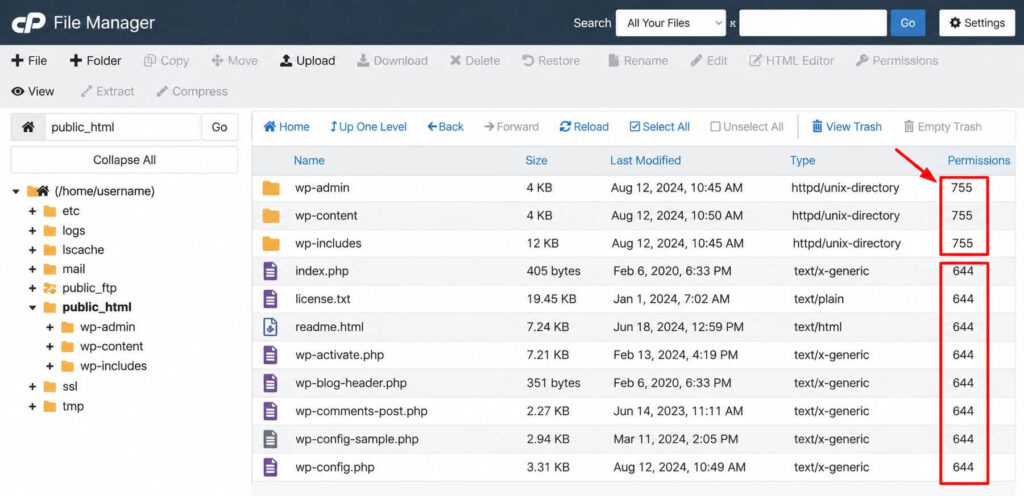
WordPress’s own documentation states this plainly: if your WordPress files are owned by the same user your web server process runs as, WordPress writes the new files itself, silently, with no prompt. If the files are owned by a different user (commonly the FTP account that originally uploaded them), WordPress cannot write to them directly and instead asks you for connection credentials before it will proceed.
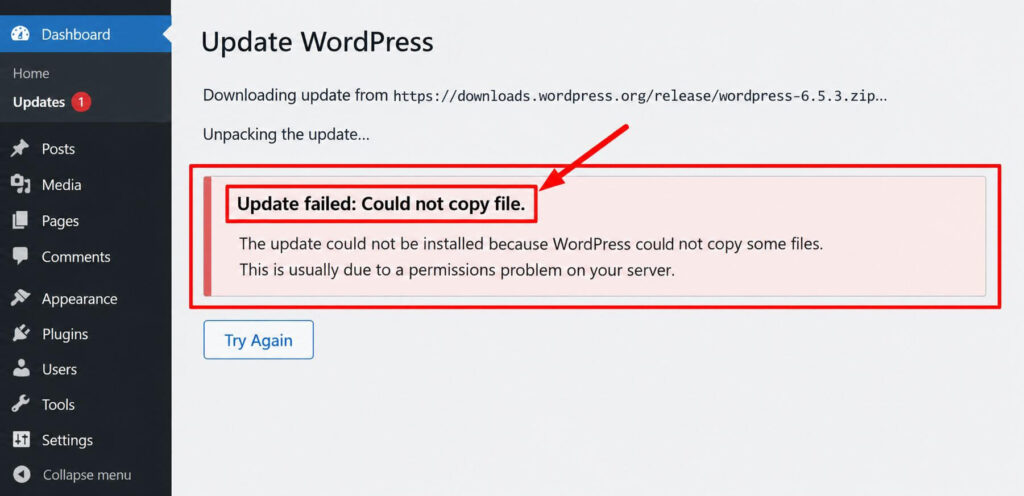
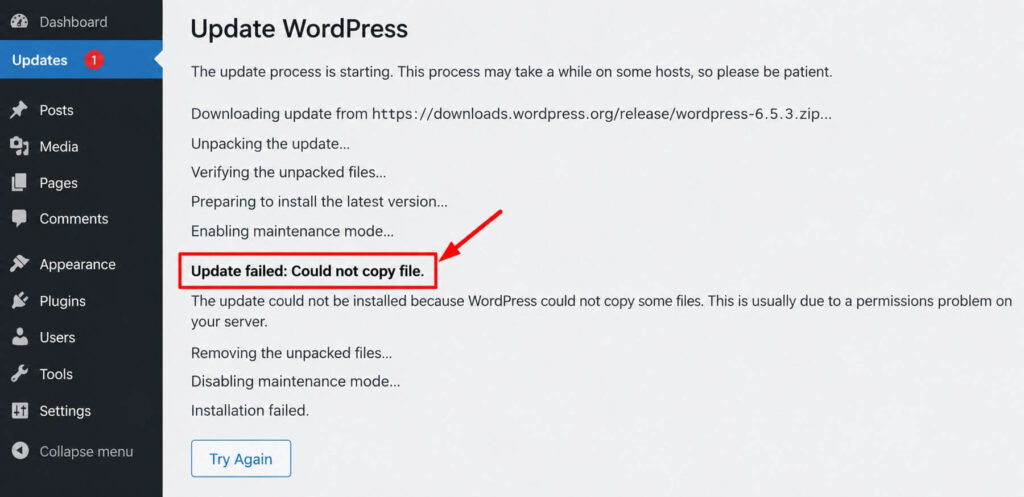
“Could not copy file” is what you see when that write attempt fails partway, most often because of exactly this kind of ownership or permissions mismatch, or because the server has run out of the disk space it needs to write the new files.
It is a file-write failure, not a corrupted download and not a WordPress bug. The update process reached the point of copying files onto your server and could not complete that copy.
Before anything else: the backup you have not tested is an assumption
A WordPress update that stops partway through a file copy can leave your site with a mix of old and new core files, some replaced, some not. Before you try to fix the cause, confirm you have a backup you could actually restore from, by checking where it is and what it contains, not by remembering that one exists. If the site is currently in a broken or half-updated state, this is the moment that decision matters, not later.
The two things worth checking yourself
Before you contact your host, two things are worth ruling out on your own, since both are visible without server access:
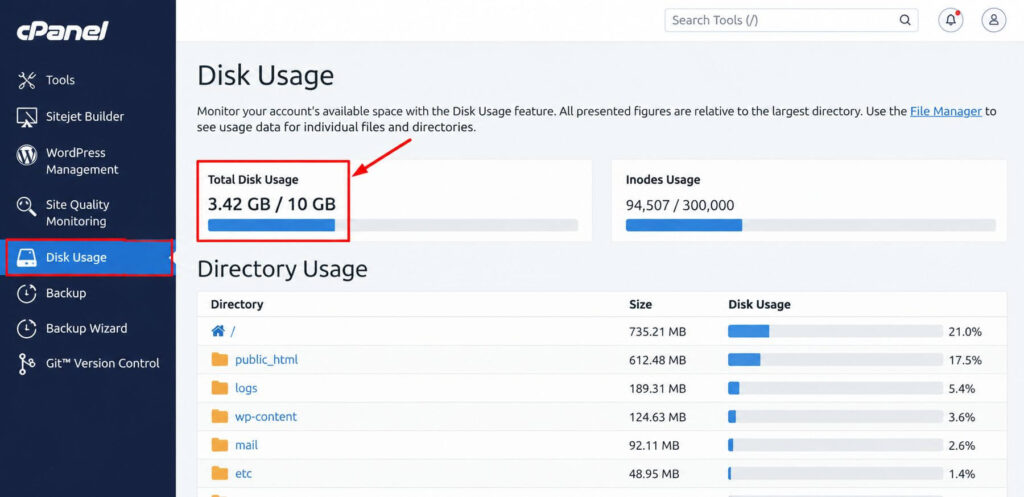
- Available disk space. Most hosting control panels show your current disk usage somewhere on the account dashboard. If you are at or near your allotted space, WordPress may be failing to write new files simply because there is nowhere to put them, which is a much faster fix (delete unused media, remove an old theme you are not using) than a permissions investigation.
- Whether WordPress is asking for FTP credentials on a fresh attempt. If a new update attempt shows a connection-details prompt instead of failing silently, that itself confirms the ownership mismatch described above, and entering your host’s FTP credentials there (not a password you invent) is often enough to let WordPress complete the write itself.
Why retrying does not work, and won’t
The failure is not caused by a slow connection or a bad moment to click the button. It is caused by a condition on the server (file ownership, permissions, or available space) that does not change between one click and the next. Repeating the exact same action against the exact same condition produces the exact same result. If you have tried more than once and gotten the identical message, that is confirmation you are looking at a structural cause, not a fluke.
Clearing the “failed update” nag versus fixing the cause: they are not the same step
After a failed update, WordPress often keeps showing a “failed update” notice even once you stop trying. WordPress’s own documentation names the fix for that specific notice directly: delete the file .maintenance from your WordPress root directory using FTP or your host’s file manager. This removes the nag message.
This is the part worth being precise about: deleting .maintenance clears the notice. It does not fix the ownership or space problem that caused the copy to fail in the first place. If you delete the file and click Update Now again without addressing the underlying cause, you will very likely see the same “could not copy file” error again. The maintenance-mode row in this cluster covers that file and the notice-clearing step on its own, in more detail, if that is the specific symptom you are looking at right now.
When this is a five-minute fix and when it needs your host
You can likely fix it yourself if: the disk-space check above shows you are near your limit, and freeing space (removing unused media or an inactive theme) resolves it, or if WordPress starts prompting you for FTP credentials and you have those credentials from your hosting account and enter them in that prompt.
It needs your host if: disk space is not the issue and no credential prompt appears, which usually means a file-ownership mismatch that only someone with server-level access can correct. Contact your host’s support and describe the exact error, including that it repeats on every retry. That detail alone tells an experienced support team it is a permissions issue rather than a fluke, and saves a round of back-and-forth.
One thing not to do: do not attempt to change file ownership or permissions yourself by running commands you found in a forum thread without knowing what they do on your specific server. A permissions change applied incorrectly can make the site less secure or break it in a different way, and this is exactly the kind of instruction this site will not hand you without verifying it against your actual setup, which nobody but your host can do.
After it’s fixed: confirm the update actually completed
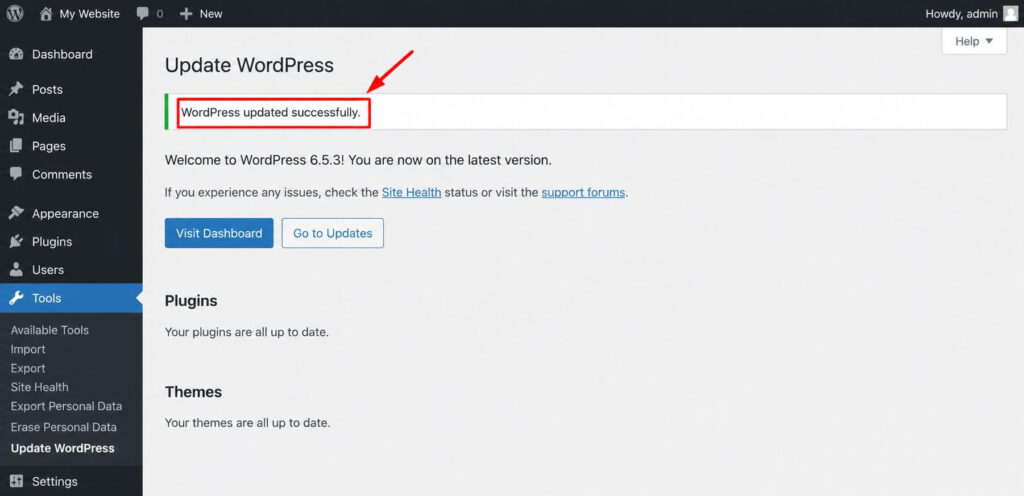
Once the cause is addressed and the update goes through, check that the version number under Dashboard > Updates or Tools > Site Health > Info matches the release you intended to install, rather than assuming success from the absence of an error. If a database upgrade is required, WordPress will send you to /wp-admin/upgrade.php automatically. Visiting your admin dashboard after the update triggers this if it is needed.
Related in this cluster
If the specific symptom you are seeing is the maintenance screen rather than this exact error text, stuck in maintenance mode after an update is the narrower guide for that. For the mechanics of what a WordPress update actually does, in order, what actually happens during a WordPress update makes the rest of the process, and its error messages, easier to read. For the wider context of the current WordPress 7.x release cycle, see the site owner’s guide to WordPress 7.
Frequently asked questions
What does “update failed, could not copy file” actually mean?
WordPress could not write a new file to your server while installing an update, most often because of a file-ownership or permissions mismatch, or because the server ran out of disk space.
Will retrying the update fix it?
No. The cause is a server condition that does not change between clicks. If you have tried more than once and gotten the same error, that confirms a structural cause rather than a fluke.
Does deleting the .maintenance file fix this error?
It clears the “failed update” nag message, which WordPress’s own documentation confirms. It does not fix the ownership or space problem that caused the file copy to fail, so the same error can return on the next attempt.
Do I need my host to fix this, or can I do it myself?
You can check your own disk space usage and, if prompted, enter your FTP credentials to let WordPress complete the write. A file-ownership mismatch with no credential prompt usually needs someone with server-level access, which means your host.
Is it safe to keep clicking Update Now while I wait for my host?
It is not harmful in itself, but it will not resolve anything and adds noise to what you eventually report to your host. Better to gather the disk-space and credential-prompt findings above first.
