
WordPress 7.0’s admin redesign, released 2026-05-20, moved almost nothing and changed almost everything about how it looks and feels. The two biggest changes are a command palette (press Ctrl+K on Windows or Cmd+K on Mac from anywhere in the admin) and DataViews, which replaces the old list tables on Posts, Pages, and Media with a filterable, sortable, app-like view. Nothing you already knew how to do has actually disappeared; it mostly moved into a faster shape. Below are the 12 everyday tasks that change the most, with the old habit and the new one side by side.
What actually moved (spoiler: almost nothing) and what changed
The core navigation, the left-hand menu, and the general page structure of wp-admin are still where you left them. What changed is the screens you spend the most time on: Posts, Pages, and Media now use DataViews instead of the old plain list tables, and there is a global command palette layered over the entire admin, not just the block editor where it used to live. WordPress also added cross-document view transitions, so moving between admin screens now animates smoothly instead of doing a full page reload, which is a visual change more than a functional one. If your admin looks nothing like a tutorial you’re following, and that tutorial predates May 2026, that mismatch is the reason, not something wrong with your site.
The command palette: the one new habit worth building
The command palette is the single fastest way to work in the new admin, and it is worth learning even if you change nothing else.
Press Ctrl+K (Windows) or Cmd+K (Mac) from any admin screen.
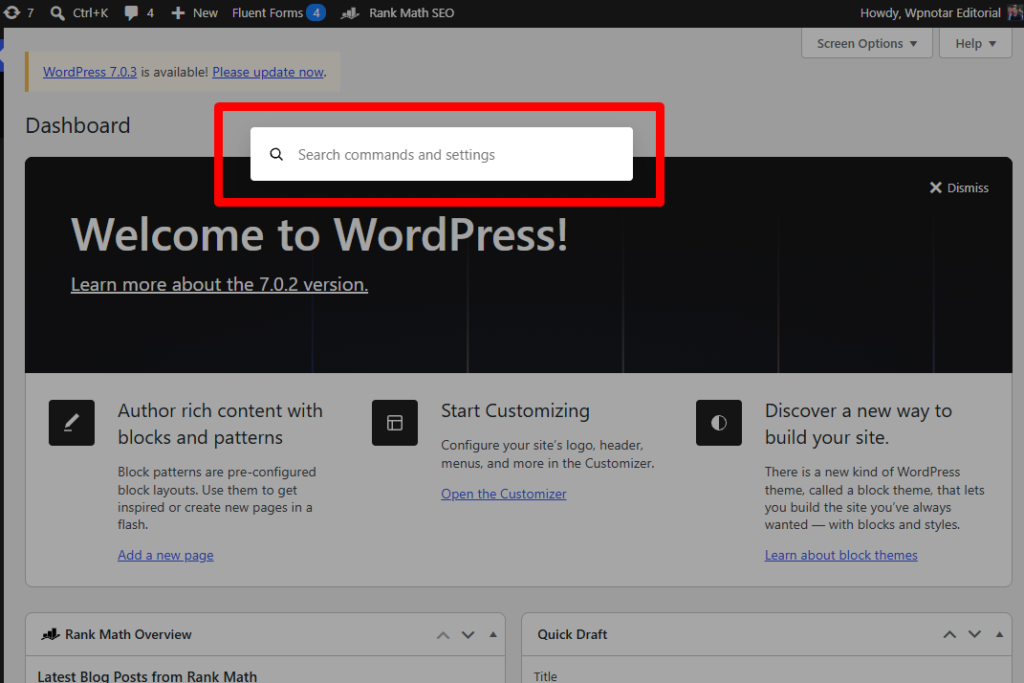
Type what you want to do, not just what you want to find. Typing “new post” opens a fresh draft; typing a plugin’s name jumps straight to its settings page if it’s installed.
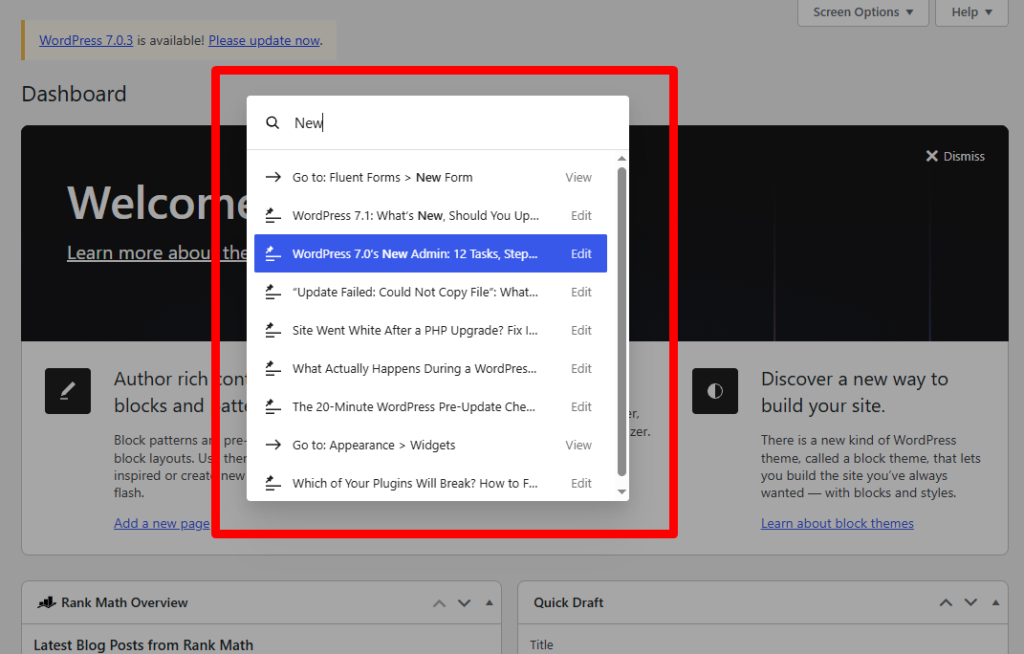
Search your own content, not just admin menu items. Typing part of a post title surfaces that post directly, skipping the Posts screen entirely.
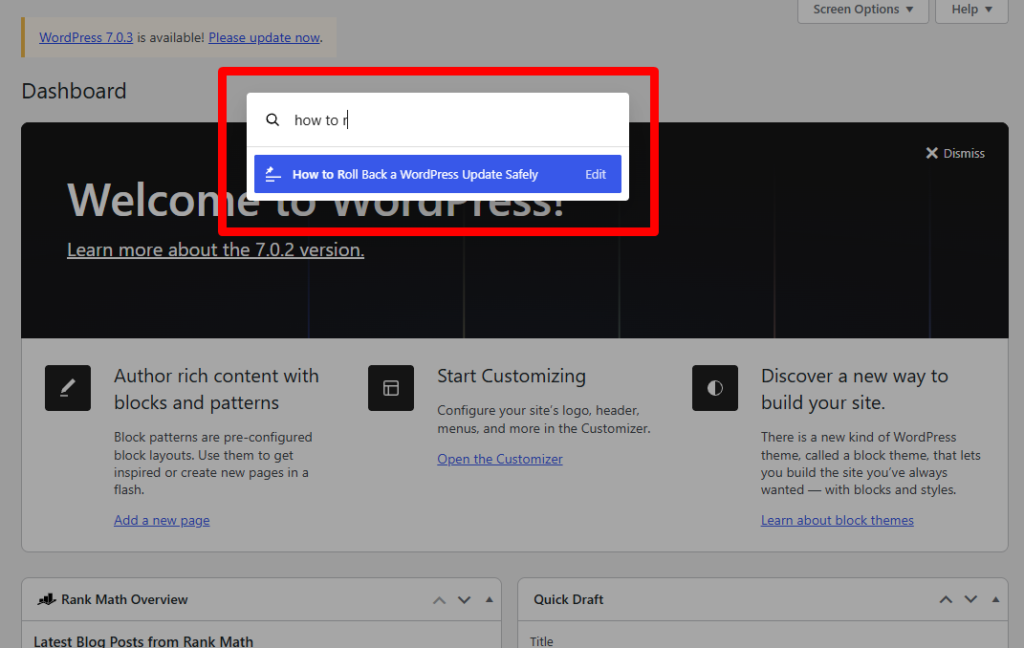
Jump to any settings page without navigating the menu tree; typing “permalinks” takes you straight to Settings → Permalinks.
Use it inside the editor too, exactly as it worked before 7.0, since the palette’s block-editor behavior is unchanged, just extended everywhere else.
DataViews: filtering, sorting, and bulk actions the old list tables couldn’t do
DataViews is the new component behind Posts, Pages, and Media. Practically, it means the following are now possible without a plugin:
- Switch between table and grid layouts on the same content list, useful for media in particular.
- Filter inline by author, status, category, or date without a page reload, with results updating as you change filters.
- Sort by any visible column with a click, the same as before, but combined with filters now rather than as a separate step.
- Select and bulk-edit a filtered subset directly, rather than paging through a full list to find the items you want.
If the new card-style layout feels less scannable than the old table, a plain list-style density option remains available inside DataViews’ own view settings; it is not gone, just one click deeper than it used to be.
12 everyday tasks in the new admin
- Publish a post. The editor itself is unchanged; the difference is the palette shortcut to a new draft (Ctrl/Cmd+K, “new post”) instead of navigating Posts → Add New.
- Find a specific post among hundreds. Use DataViews’ inline filter bar on the Posts screen rather than paging through, or search directly from the command palette.
- Bulk-edit categories or tags on many posts at once. Filter to the subset you want in DataViews, select them, then apply the bulk edit, all on one screen.
- Install a plugin. Open the palette, type the plugin’s name; if it’s not already installed, the palette still gets you to Plugins → Add New faster than the menu does. If installing or updating one leaves a feature broken afterward, our guide to fixing a plugin that stopped working after an update covers the triage.
- Switch a page’s featured image. Unchanged in the editor sidebar; only the surrounding chrome looks different.
- Manage users and their roles. Still under Users, cosmetically updated to match the rest of the redesigned admin, but the permission options themselves are unchanged.
- Change your site’s fonts. New home: Appearance → Fonts, which now works on classic themes as well as block themes, not just block themes as in earlier versions.
- Undo an unwanted content change. Visual revisions now show a slider-based before/after comparison rather than a plain diff, making it easier to see what actually changed before you restore an older version.
- Reorganize your media library. DataViews applies here too: filter by file type or upload date, then bulk-select for the action you need.
- Adjust the admin’s color scheme. Still under your user profile, cosmetically refreshed to match the new interface, with the same underlying settings.
- Set up AI-assisted features. New home: Settings → Connectors, a single screen for API keys that every compatible plugin can then use. Our Connectors setup guide covers this in full, including the safety questions worth asking first.
- Check for compatibility warnings after an update. Tools → Site Health surfaces PHP and plugin flags directly, unchanged in location but worth checking more often during a release week.
Miss the old admin? What you can and can’t bring back
You can switch DataViews back to a plain list-style density from its own view options, and the underlying screens (Settings, Users, Plugins, Tools) are all in their familiar places. What you cannot do is fully restore the pre-7.0 list-table code or opt out of the command palette; both are now part of core rather than an optional layer. If a specific admin-customization plugin you relied on to reskin the old tables has not been updated since before May 2026, check its “Tested up to” flag before assuming it still works as intended; a stale flag is often the actual reason an old habit no longer works, not the redesign itself.
What WordPress 7.1 is expected to touch next
WordPress 7.1 ships 2026-08-19 and adds interactive-state styling (so blocks can visually respond to hover and focus without custom CSS), viewport-based responsive styling controls, and three new blocks, plus richer Notes for in-admin feedback. None of that changes the admin navigation covered above; it builds on top of it. Our full rundown of what’s new in 7.1 covers whether you should update on day one.
FAQ
Did WordPress move my settings pages in 7.0? No. Every settings page is exactly where it was; only Posts, Pages, and Media changed their underlying screen technology to DataViews, and a command palette was added on top of everything.
Why does my admin still look like the old version after updating? A caching plugin or your host’s server-side cache can serve a stale admin asset bundle right after an update. Clear every cache layer, then hard-refresh the browser tab before assuming the update did not apply.
Is the command palette only for developers? No. It works for any admin task you’d otherwise reach by clicking through menus, and typing plain English (like “new post” or a setting’s name) is usually enough; no special syntax is required.
Can I turn DataViews off and go back to the old list tables? Not entirely, since DataViews is now the underlying screen technology for Posts, Pages, and Media in core. You can switch its density to a plain list view, which covers most of what people miss about the old tables.
Written against WordPress 7.0.1. Last verified 2026-07-29.
