
Settings → Connectors, added in WordPress 7.0, is a single screen for storing an AI provider’s API key so that every compatible plugin on your site can use it, instead of pasting the same key into each plugin’s own settings separately. Setting it up takes three steps: pick a provider (OpenAI, Anthropic, or Google are the three core supports out of the box), get an API key from that provider’s own dashboard, and paste it into Settings → Connectors. The part people actually get stuck on is not the WordPress side; it’s the provider’s dashboard. This guide covers both, plus the two questions worth answering before you connect anything: is the key safe once it’s in your database, and what will this actually cost you.
What Connectors actually is (and what it is not)
Connectors is a credential-storage layer, not an AI feature by itself. Think of it as a vault: you enter a provider’s API key once, and any plugin built to use WordPress’s AI Client can draw on that same connection rather than asking you for its own separate key. It does not, on its own, generate content, write posts, or make editorial decisions; it only makes a provider’s API reachable to plugins that request it. What those plugins then do with a generated draft, including checking it for accuracy before you publish, is a separate question this guide does not cover.
Before you start: pick a provider
WordPress core registers three connectors out of the box: OpenAI, Anthropic, and Google. This is a description of what ships in WordPress, not a ranking of which is best; each provider has its own pricing, its own data-handling terms, and its own account setup process, and the right one for you depends on which plugins you plan to use and what account you may already hold for other work. If you already use one of the three providers for something else, connecting the same one first is usually the path of least friction, since you already have billing set up on their side.
Get your API key (the step where people actually get stuck)
The friction here is almost always on the provider’s dashboard, not in WordPress. In general, across all three providers, the steps are similar:
- Create or log into an account on the provider’s own website (not inside WordPress).
- Find the API or developer section of that account, usually separate from any consumer chat product the same company offers.
- Generate a new API key. Providers typically show the full key only once, at creation time, so copy it into a temporary secure note before closing that page.
- Set up billing on the provider’s side, if the provider requires a payment method attached before API access works, which is common even before you’ve used any usage.
Each provider’s dashboard changes its layout periodically, so exact menu names are intentionally left general here rather than described screen by screen; if a specific button described elsewhere doesn’t match what you see, the provider has likely redesigned that page since it was written.
Connect it: Settings → Connectors, step by step
- Go to Settings → Connectors in your WordPress admin. If you updated to WordPress 7.0 recently and the admin layout looks unfamiliar, our walkthrough of the redesigned admin covers where everything moved. Connectors itself was introduced in WordPress 7.0; if you’re still running an older version, you’ll need to update first, and WordPress 7.1 (shipping 2026-08-19) adds a related AI Guidelines layer on top of it, covered in our rundown of what’s new in 7.1.
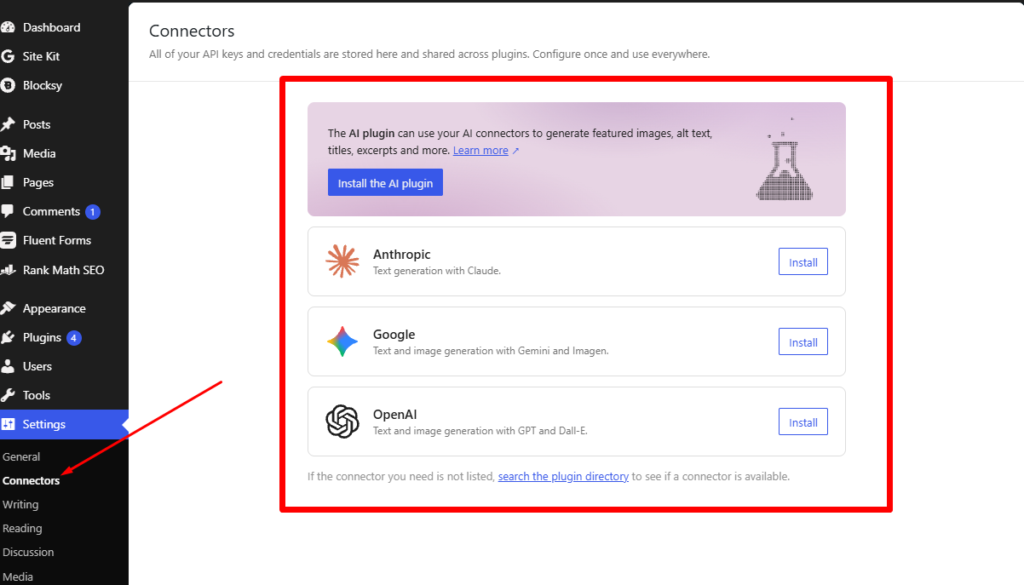
- Select the provider whose key you generated.
- Paste the API key into the field provided, and save.
- Confirm the connection. Once saved, WordPress masks the stored key, displaying only its final four characters going forward, so you can identify which key is connected without the full value being visible on screen again.
- Check which of your plugins now recognize the connection. Not every AI-aware plugin automatically uses a Connectors key; some still require their own separate key even after you’ve set one up centrally. If activating or updating a plugin around this step leaves something else on your site not working, our guide to fixing a plugin that broke after an update covers the triage.
Set a spending cap and understand the costs
API access is typically billed by usage, not a flat subscription, which means costs can vary month to month depending on how much your site’s plugins actually call the provider. Providers commonly let you set a spending limit or usage cap directly in their own billing dashboard, separate from WordPress; doing this before you start using any AI-assisted plugin is the single most effective way to avoid a surprise bill, since it caps exposure at the provider level rather than relying on WordPress to enforce a limit it doesn’t control. Because pricing structures and rates change and differ by provider, this guide does not quote specific figures; check the current pricing page on your chosen provider’s own site before connecting, and re-check periodically, since providers do change pricing without notifying connected sites.
Privacy: what leaves your site when you use AI features
When a plugin uses your Connectors key, whatever content that plugin sends as part of its request, such as a draft you asked it to help write, is transmitted to the provider’s servers to generate a response. What each provider does with that data (whether it’s used to train future models, how long it’s retained) is governed by that provider’s own data-processing terms, which differ between OpenAI, Anthropic, and Google and change over time. Read your chosen provider’s current data policy directly on their site rather than relying on a summary from elsewhere, since this is exactly the kind of detail that changes without much notice.
Is your API key safe in the WordPress database?
WordPress checks for connector credentials in a defined order: first an environment variable, then a PHP constant, and only then the value saved through the Settings → Connectors admin screen. In practice, this means a more security-conscious setup, where the key lives in a server-level environment variable or in wp-config.php rather than the database, is possible for anyone comfortable making that change with their host, and WordPress will use that value instead of the database entry automatically. For most site owners entering a key through the admin screen directly, the practical safety question is less about the credential’s storage itself and more about who else can access your wp-admin, since anyone with admin access can view or change Connectors settings. Reviewing which user roles on your site are administrators is the relevant safeguard here.
What you can do right now vs. what still needs a plugin
Connectors alone does not give your site any new AI-generated content, editorial suggestions, or automated features. It only makes the connection available. Whether AI-assisted alt-text generation, drafting help, or any other feature exists on your site depends entirely on which plugins you install and whether they’re built to use the AI Client that Connectors feeds. Checking a plugin’s own documentation for whether it supports Connectors, rather than assuming compatibility, avoids the common surprise of setting up a key and seeing nothing change.
FAQ
Is there a free option? Whether any given provider offers a free usage tier, and how generous it is, is decided entirely by that provider and changes over time; check the current terms directly on the provider’s own site rather than assuming a free tier exists or persists.
Can I connect more than one provider at once? Yes, Settings → Connectors is not limited to a single provider; you can store keys for more than one and let different plugins draw on whichever connection they’re built to use.
How do I remove a key once it’s connected? Return to Settings → Connectors, select the connected provider, and remove or replace the stored key from that same screen. If you suspect a key may have been exposed, generating a new key on the provider’s dashboard and revoking the old one there is the more important step, since removing it from WordPress alone does not deactivate the key at the provider’s end.
What happens if I connect a key and nothing changes on my site? This is expected if none of your installed plugins are built to use the Connectors credential yet. Connectors is a credential store, not a feature on its own; check your specific plugins’ documentation for Connectors support.
Written against WordPress 7.0.1. Last verified 2026-08-01.
